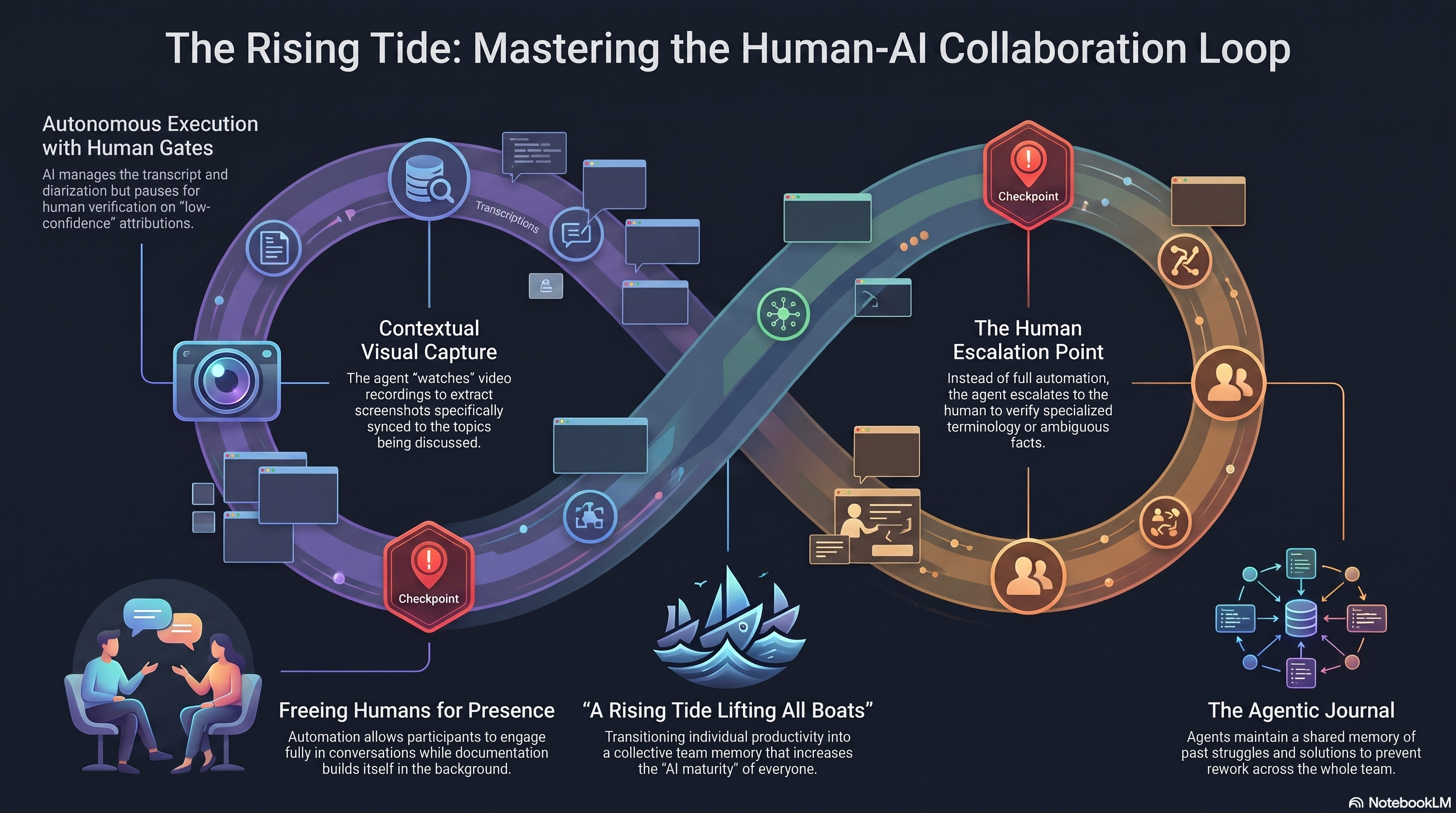
Matthew came to this episode of Reflective Practice Radio with a demonstration. He built a workflow for automatically summarizing recorded meetings. We had talked before about documenting conversations and going back to them for reflection. Matthew has been using this workflow for the Thought Leadership Build in Public meetings at Improving, and it has been incredibly helpful for catching up on missed discussions.
I mentioned that I had a similar process for documenting feature work, where I could give the workflow some implemented stories and it would find the end-to-end tests, run them in slow motion, take screenshots, and generate documentation. Matthew said his workflow would work well for that use case, and it could even be orchestrated with other workflows to pass outputs between them automatically.
Building the Workflow
Matthew shared his screen to show how the workflow works in practice. He uses Claude Code directly in his IDE because the integration shows changes inline rather than at the terminal level, giving him more flexibility to scroll and compare. He could use Claude Desktop or any terminal, but he prefers staying in the IDE where he already lives and works.
The workflow begins by asking what kind of session is being recorded. Matthew has different options for podcast interviews, workshop talks, open forum discussions, and the types of meetings they typically have at Improving. For this demonstration, he chose podcast interview. The workflow also asks about attribution, whether to let the transcription service guess speaker names or type them manually. For meetings with many people, Matthew prefers to type the names. For our podcast he let the service guess since we introduce ourselves at the outset.
Transcription and Attribution
The workflow uses DeepGram for transcription. Matthew mentioned that DeepGram gave him $200 in free credits when he signed up, and he still had over $100 left after more than a year of use. For work meetings with security concerns, he uses a local model instead. I noted that I use MacWhisper for our podcast recordings and already have cleaned-up transcriptions, which could skip the initial transcription step entirely.
The workflow identified the speakers but initially got my last name wrong. Matthew had built in a checkpoint to flag uncertain attributions, asking me to verify the co-host’s name, episode number, names dropped in passing, acronyms like TLC (The Learning Circle), and tool names like Windsurf (now Devin). This is where the human-in-the-loop approach really shines.
Human-in-the-Loop Design
These workflows free humans from parts of the process rather than removing them entirely. The workflow does the heavy lifting of transcribing, attributing, and taking screenshots. It escalates to the human when it needs verification or has uncertainty. I liked this approach because it minimizes rework. You participate in the process as it happens rather than fixing everything in post-processing.
Matthew emphasized that this relationship works really well. The workflow escalates when it wants more information or identifies something that might need human judgment. You interact, give it what it needs, and it continues. This is different from the approach of giving a prompt upfront and expecting a complete deliverable when you return, only to find things that need correction.
Capturing Screenshots
Since the previous episode had screen sharing, Matthew chose it for the demonstration. The workflow can detect when screen sharing occurs and offer to capture screenshots. These tools cannot ingest video the way humans can, but they can load a browser with the video playing, pause at key moments connected to what was discussed, and take screenshots that are labeled with context.
I mentioned that my own workflow for screen captures takes multiple screenshots and asks the human to choose the best one, which is especially useful for fast-action moments or highlight effects. Matthew liked that idea and noted it could be configured to sample frames from a time window and surface them for human selection.
The workflow captured several frames from the screen share, including the cinematic video showing a jet turbine strapped to a vintage car, the prompt with six monthly blog sources, and various Notebook LM visualizations. It verified each frame, confirmed clean content and name labels, and dropped duplicates. Matthew noted that after the initial attribution checkpoint, the process runs largely autonomously.
Generating the Summary
The workflow creates a markdown summary with meeting overview, topics discussed, notable moments, quotes, action items, and follow-ups. It then attempts to build a PDF using tools like Pandoc and WeasyPrint. When those weren’t installed, it fell back to generating a self-contained HTML file with print styling, which achieved the same result.
The final summary included everything from the meeting. The AI maturity self-evaluation discussion. The signal versus noise conversation about focused communities. My talk at TLC. The six months of daily blogging. The Notebook LM analysis. It also captured action items like writing a blog post about the daily blogging experience and sharing the sandwich-making educational visualization on a future episode.

Using NotebookLM for Synthesis
Matthew mentioned that he takes these generated summaries and feeds them into Notebook LM along with other ad hoc conversations happening around the office. He then generates podcasts based on those combined sources, allowing conversations from different points in time to be part of one synthesized discussion. This is where NotebookLM really shines. Not just as a research tool, but as a way to build things from content.
I agreed that NotebookLM is mind-blowing and often misunderstood. Most content talks about it as a research tool, but that is the smallest use case for me. I hardly ever use it for research. I use it to take all my content and help me build things with it.
Portability and Model Selection
The workflow is vendor-agnostic and could be ported to other AI tools like Devin or Codex. Matthew said he would just need to provide installation instructions as part of the package, and the agent could install everything automatically. The workflow does not require high-end models either. Haiku would likely work fine for most of the process since it is primarily looking at transcripts, attributing speakers, and taking screenshots.
I noted that I have been experimenting with being more token-conscious in my own workflows, using free models for first passes and quick summaries, then bringing in Sonnet only for the final writing. I tried switching to Haiku for my blogging workflow but did not like the results because Haiku is more technical than creative.
The Right Relationship with AI Tools
We wrapped up by reflecting on how this approach to AI workflows gets our time back as humans. Rather than being knee-deep in every detail, we can step back and let the AI do the work while we focus on other human things (it’s AI in the Human Loop!). Matthew pointed out that doing RPR while the workflow ran in the background was a perfect example. We were having a conversation the entire time while the process worked. If he had to build the PDF manually, his attention would have been too divided.
Think of these tools as assistants that free us up for the work that matters, not as replacements for the work we do. The potential use cases are endless. Capturing whiteboard drawings in meetings. Generating executive summaries for stakeholders who missed sprint reviews. Anonymizing content for different audiences. You have the raw material and can slice and dice it however you need based on intent and need.



Leave a Reply